Dealing with complexity
Moving around
Section titled “Moving around”Ctrl + scroll zooms; two fingers pinch on a touch screen. The overview at the bottom left marks the part on screen. Bird’s eye, the bird button by the zoom buttons, shows the whole map: click a place to go there.
Closing and hoisting groups
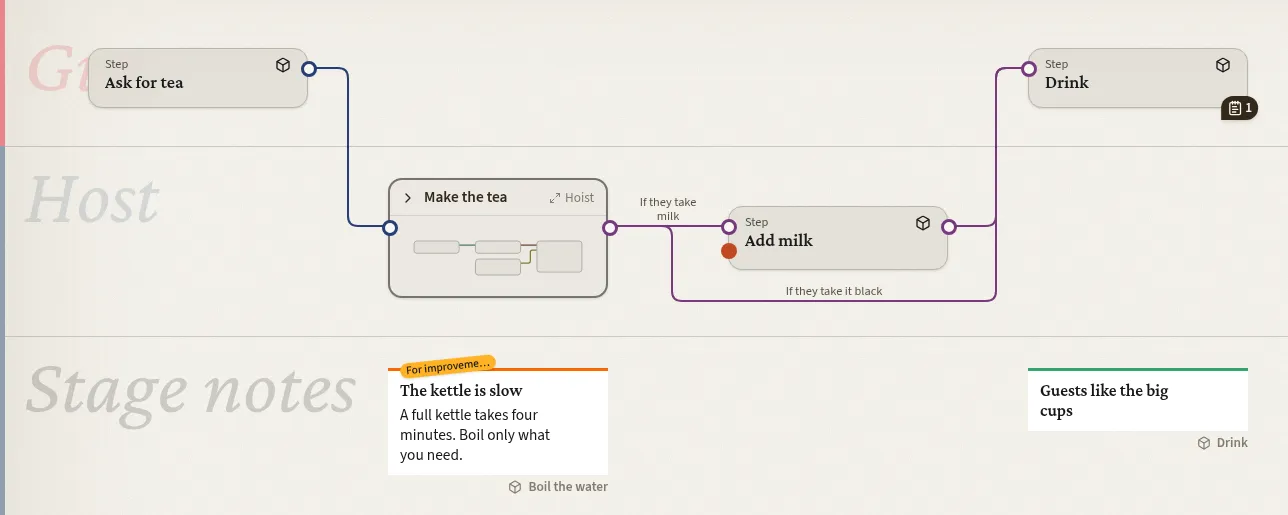
Section titled “Closing and hoisting groups”The arrow on a group’s frame closes it to a block with a thumbnail of its contents, and the map closes up around it. Lines end on the block. Closing is your own view; others still see the group open.
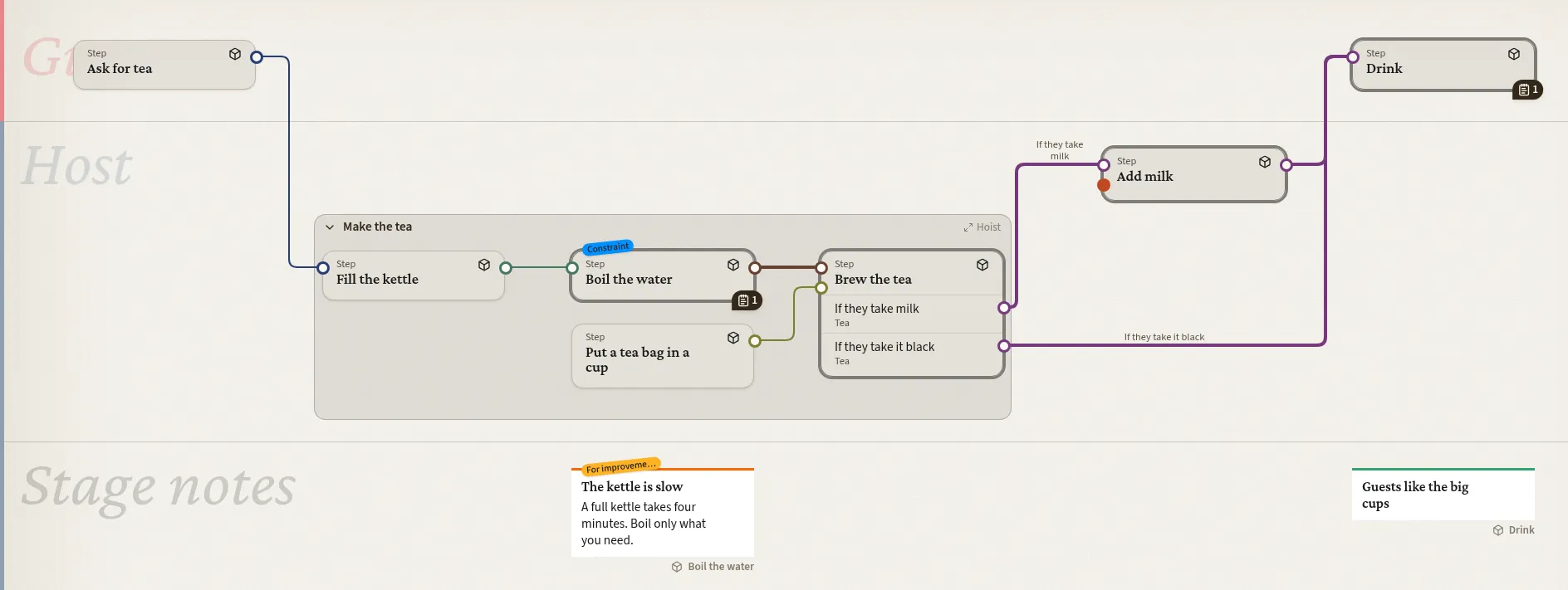
Hoist on a group’s frame shows only that group. Lines to outside fade at its edge. The bar that appears under the top bar leads back up, to Whole map.
Highlighting paths
Section titled “Highlighting paths”A step’s right-click menu has Highlight predecessors and Highlight successors: everything leading to it, or following from it. Lines that run back against the flow are not followed, so a loop does not light up the whole map. Select predecessors and Select successors select those steps instead, to move or group them.
A line’s right-click menu has Highlight same connectors: every line of that Object and the steps at its ends. Clear highlight at the bottom left removes all highlights.
Pointing at a line highlights it while the pointer stays; so does pointing at a dot with a single line.
Finding steps
Section titled “Finding steps”The Nodes tab searches names, descriptions, Objects, tags and notes, and filters by Class. Selecting a step there takes you to it on the map. Issues lists open ends the same way.
More room
Section titled “More room”On a large screen, the pin at the top of the editor keeps it open as a column instead of a sliding panel. Simplify map in the settings reorders outputs on the map to reduce crossings. Free editing (see Anatomy) makes sketching a large structure quick.